

Importing trades
Bring years of history from your broker without retyping a thing.
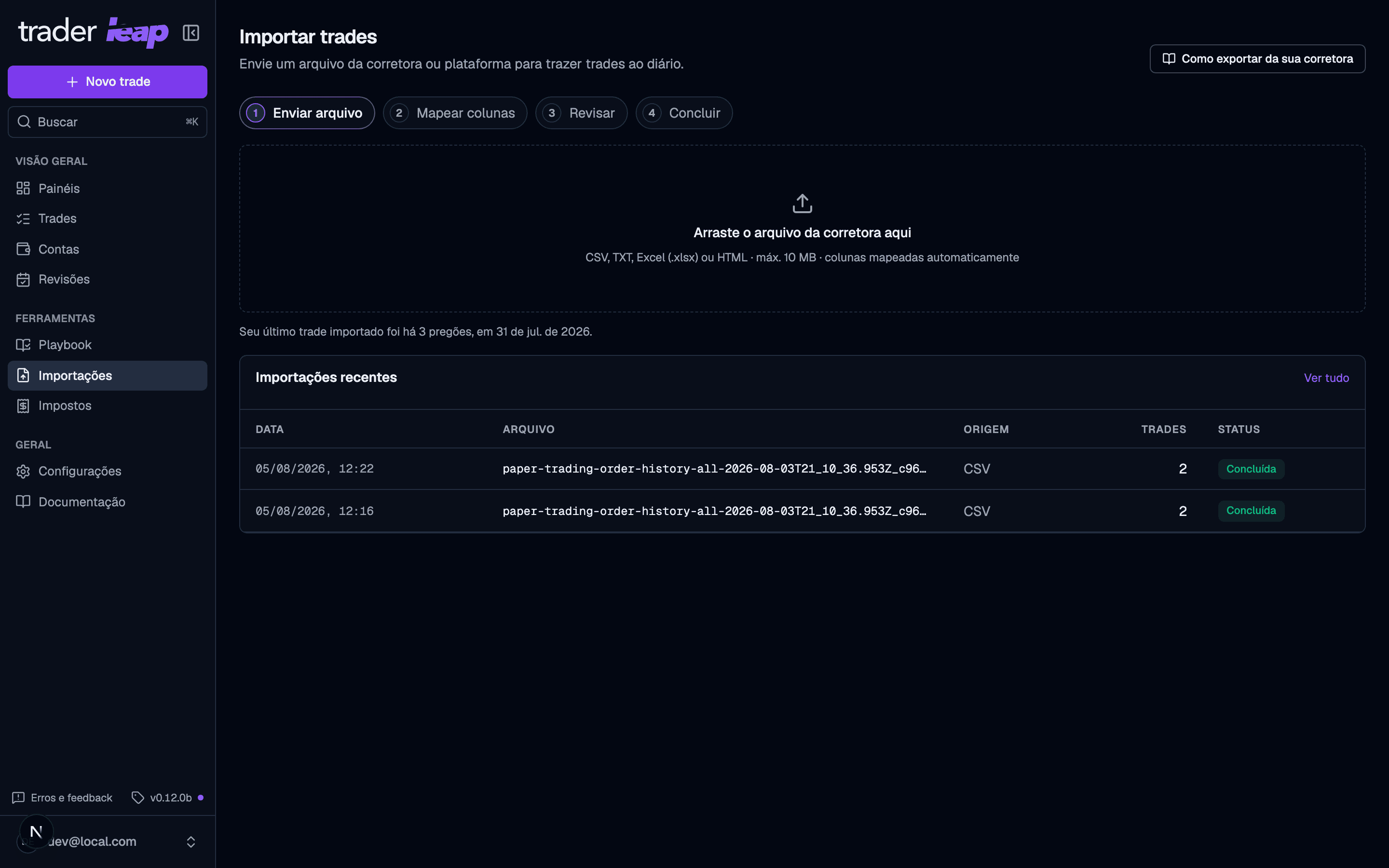
Importing is the fastest way to bring your history into Trader Leap.
How it works
- Upload: upload the trade file exported from your broker (CSV, TXT, Excel, or HTML, up to 10 MB). Numbers with a decimal comma are recognized automatically; if the file's dates are ambiguous (for example 03/04/2024), Trader Leap warns you and asks you to confirm the exact format — DD/MM, MM/DD, or YYYY-MM-DD — at the mapping step.
- Map columns: Trader Leap reads the columns from the file itself. Reuse a mapping you saved before, or change anything it read wrong. If the file carries a stop-loss or risk column, map it: when the risk can be worked out, imported days are scored against daily targets like max full stops, same as hand-logged ones.
- Review: check the preview row by row before confirming. A position the file split into pieces arrives combined into one trade; when the file got it wrong, Combine into one trade and Split let you fix the grouping by hand, right in the preview. When a trade was read from several orders, From N orders opens the ones behind it. The grouping is an interpretation, so it is worth checking. Not part of this trade drops an order and reads the file again without it, and Use them again takes that back.
- Finish: before anything is written, the summary shows what is about to come in (how many trades, the net result, wins and losses, the instruments, and the date range) and you pick the destination account there, once. Then the trades go straight into your journal, the Evidence Coach reads the record the run just fed and headlines what it found, and the last step opens the review pass over exactly what you imported — checking stops, risk, and exits, then reviewing each trade — with that day's Debrief one click beside it. If the file carried no stop or risk column, the card says how many trades need that attention.
Thirty platforms with a ready-made guide
The import screen includes a step-by-step export guide for thirty brokers and platforms: from Profit and Tryd in Brazil to Rithmic, NinjaTrader, and Sierra Chart for prop firm traders, plus Bybit, Blofin, and Hyperliquid for crypto. See the full list in Broker guides, or open How to Export from Your Broker right on the import screen.
There's nothing to pick for any of them. Trader Leap reads the header and checks the values under it, so the columns arrive already mapped whichever platform wrote the file. That covers the awkward exports too: the ones that split a value across two columns, or never name the field in the header. Correct anything that came in wrong, and use Save as Template if you want the same mapping on your next file.
Don't use any of the listed platforms? Any CSV, XLSX, TXT, or HTML file can be imported the same way by mapping the columns manually.
A file that states its own fees keeps them: when a platform's export declares the P&L net of fees, the fees column rides along for the record instead of being double-counted against the result.
Plan limits
- Free: 30 imports per month, up to 1,000 rows per file.
- Trader and Premium: unlimited imports, no row limit.
An import counts toward the month's limit the moment you click Import N rows at the final step (Finish) — not during upload, mapping, or review. Canceling after that click still uses one of your imports.